ONVERIS GATEWAY
Your control centre
Manage users, assistants, API keys, knowledge bases and connectors from a central administration interface. Route requests to your connected nodes.

THE ONVERIS PLATFORM
Give your people AI that works with your documents, business data and everyday systems. Keep model inference within infrastructure you control.
FROM INFRASTRUCTURE TO EVERYDAY WORK
Run your models, manage your organisation and give people a familiar way to use AI.
ONVERIS GATEWAY
Manage users, assistants, API keys, knowledge bases and connectors from a central administration interface. Route requests to your connected nodes.
ONVERIS NODE
Host and run AI models on your own hardware. Connect multiple nodes to the Gateway as your model choices and capacity requirements develop.
ONVERIS CHAT
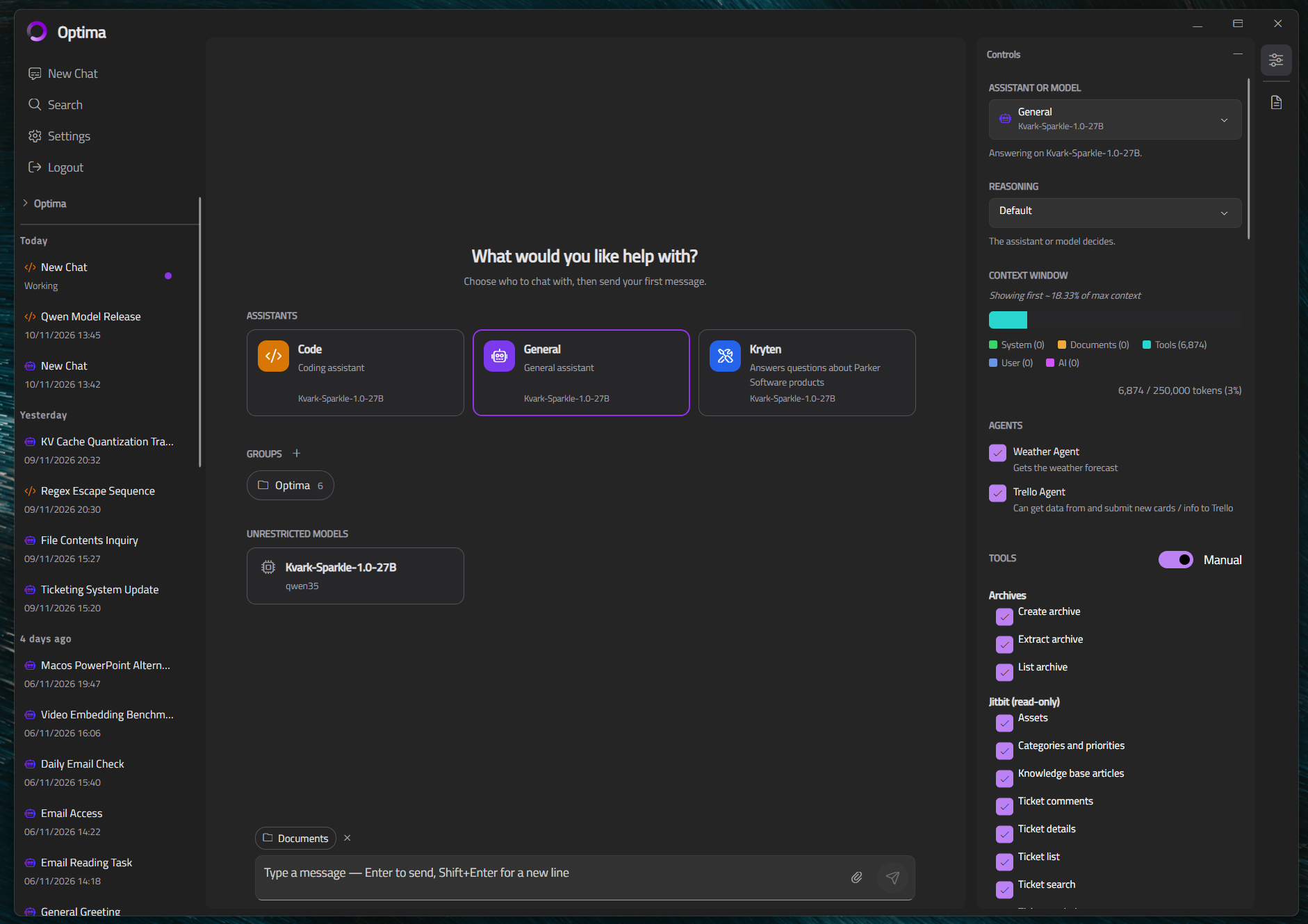
Make assistants available in a browser, on Windows, macOS and Linux, and on iPhone, iPad and Android. Your applications can use the API too.
PLATFORM CAPABILITIES
Build the experience around the task. Keep relevant knowledge close, and make the right tools available.
Choose instructions, models, knowledge and tools for each assistant. Create a focused experience for the people who need it.
Import reference material and make it searchable. Attach selected knowledge bases to an assistant to ground answers in your content.
Select the connectors and individual tools an assistant may use. Configure permission prompts for supported actions in chat.
Run locally hosted models on your Nodes. Assign models to assistants and configure fallback models where appropriate.
Connect supported applications through familiar API patterns for chat, responses and embeddings. Manage access using API keys.
Give staff a consistent place to chat. Desktop connectors can also reach permitted files and tools on the person's own computer.
CONNECTED TO YOUR BUSINESS
Bring live business data into the conversation with a growing catalogue of connectors. Give each assistant the specific tools it needs, from customer records and accounts to HR and everyday collaboration.

Look up contacts, companies, deals and support tickets. Give a sales assistant the customer context it needs.

Read invoices, bills and financial reports. Create draft invoices for a person to review in Xero.

Find employee information and leave records. Use the available tools to book or review leave requests.



Search SharePoint and OneDrive files, read Outlook email and work with Teams chats through dedicated connectors.


Look up customer and payment information in Stripe, or work with boards, cards and checklists in Trello.

Add predefined tools for internal services, connect an MCP server, or build an OnVeris connector for your own workflow.
Connector capabilities vary by service. Administrators configure credentials and access. Connections to cloud services use those services; local AI inference remains in your chosen infrastructure.
CONTROL WHAT YOUR AI CAN DO
Decide which people and applications can use an assistant, then select the knowledge and tools it can reach. Review shared credentials and connector access as part of your deployment.
Read about assistant controls ↗Grant a whole connector or selected tools. Use read-only capabilities when an assistant only needs to find information.
Set permission prompts for chosen tools in chat. Tools that require approval are not offered through unattended API requests or scheduled tasks.
Manage your Gateway, Nodes and locally hosted models. Connecting to an external service is an explicit choice made through a configured connector.
VISIBILITY ACROSS YOUR DEPLOYMENT
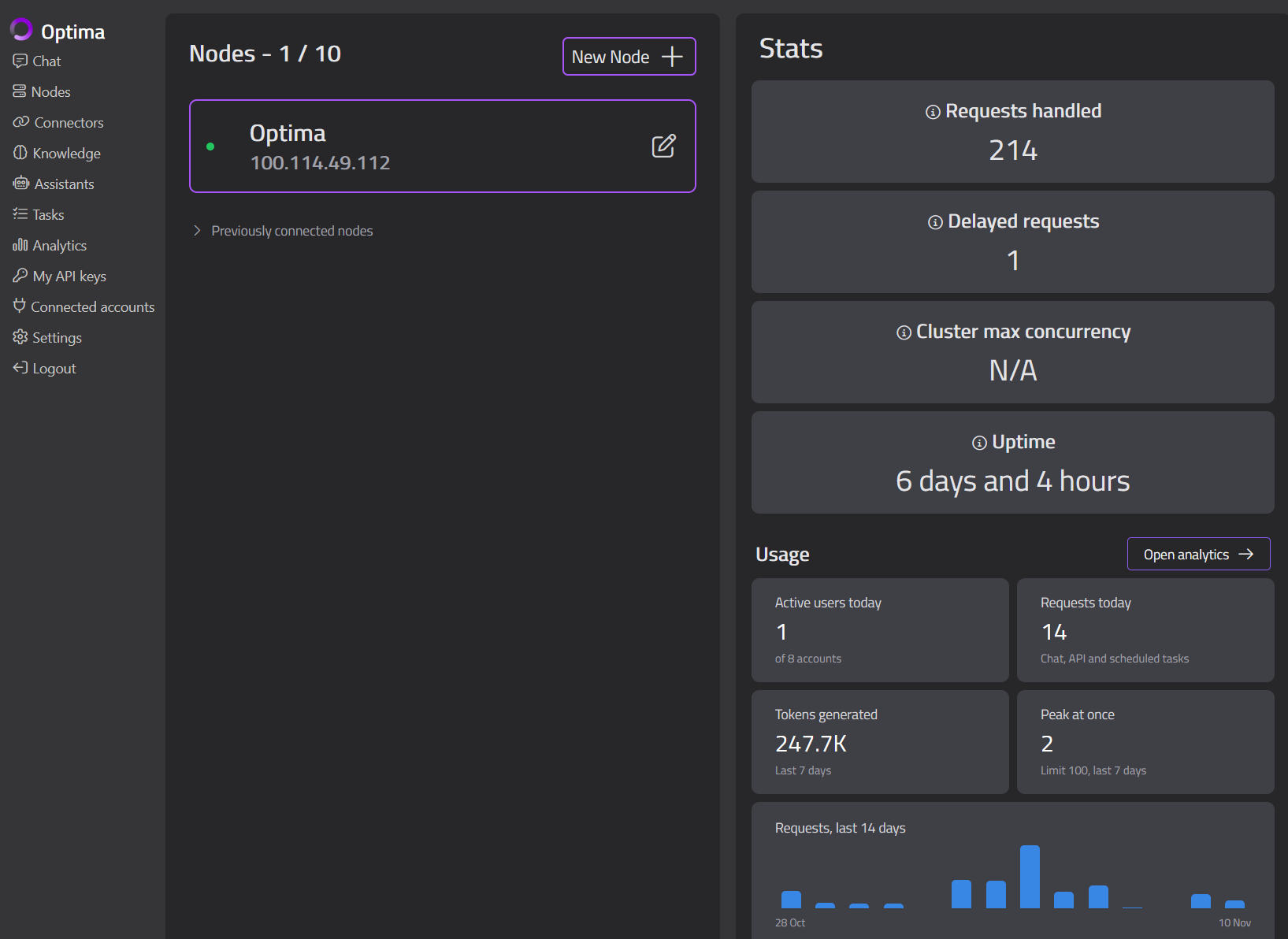
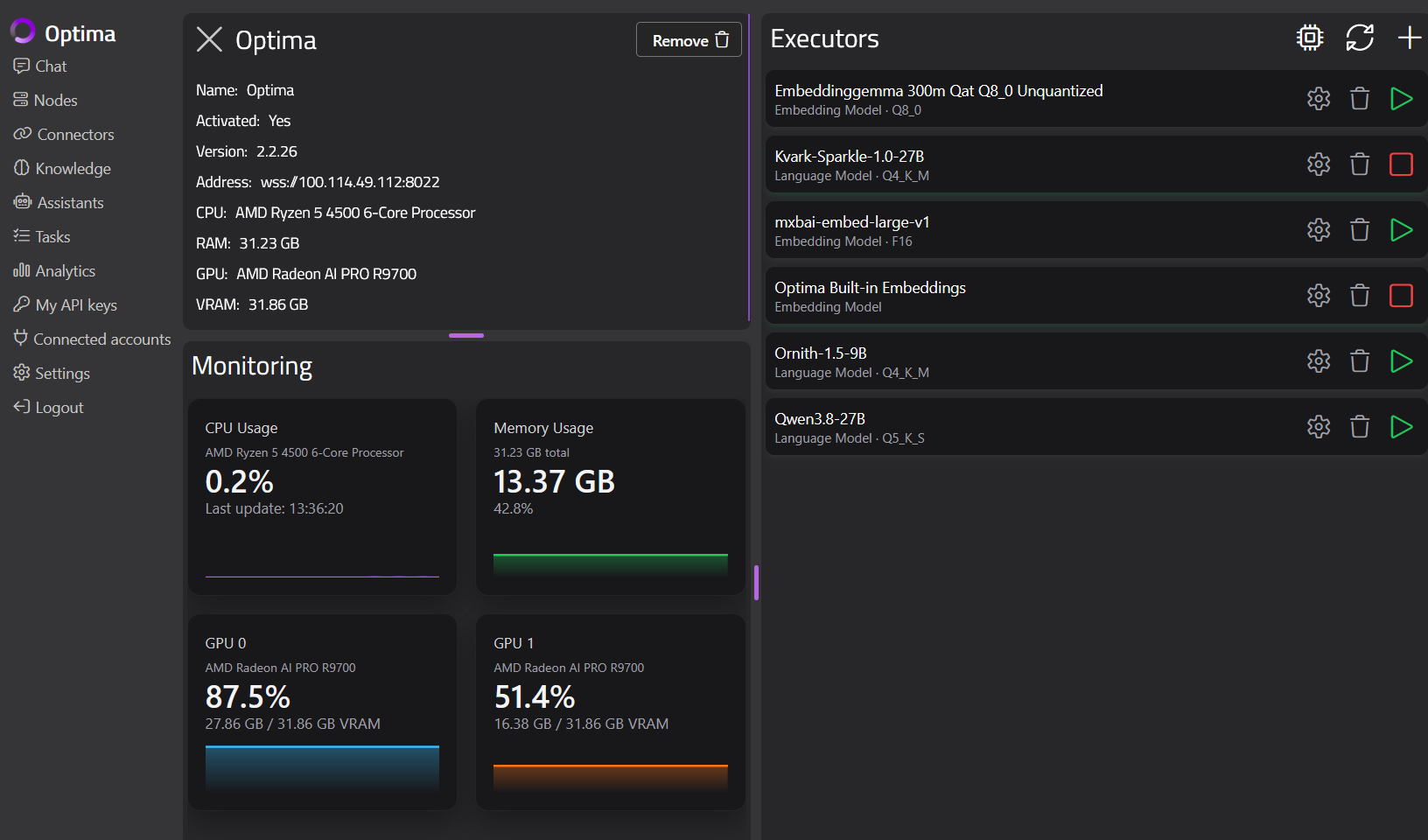
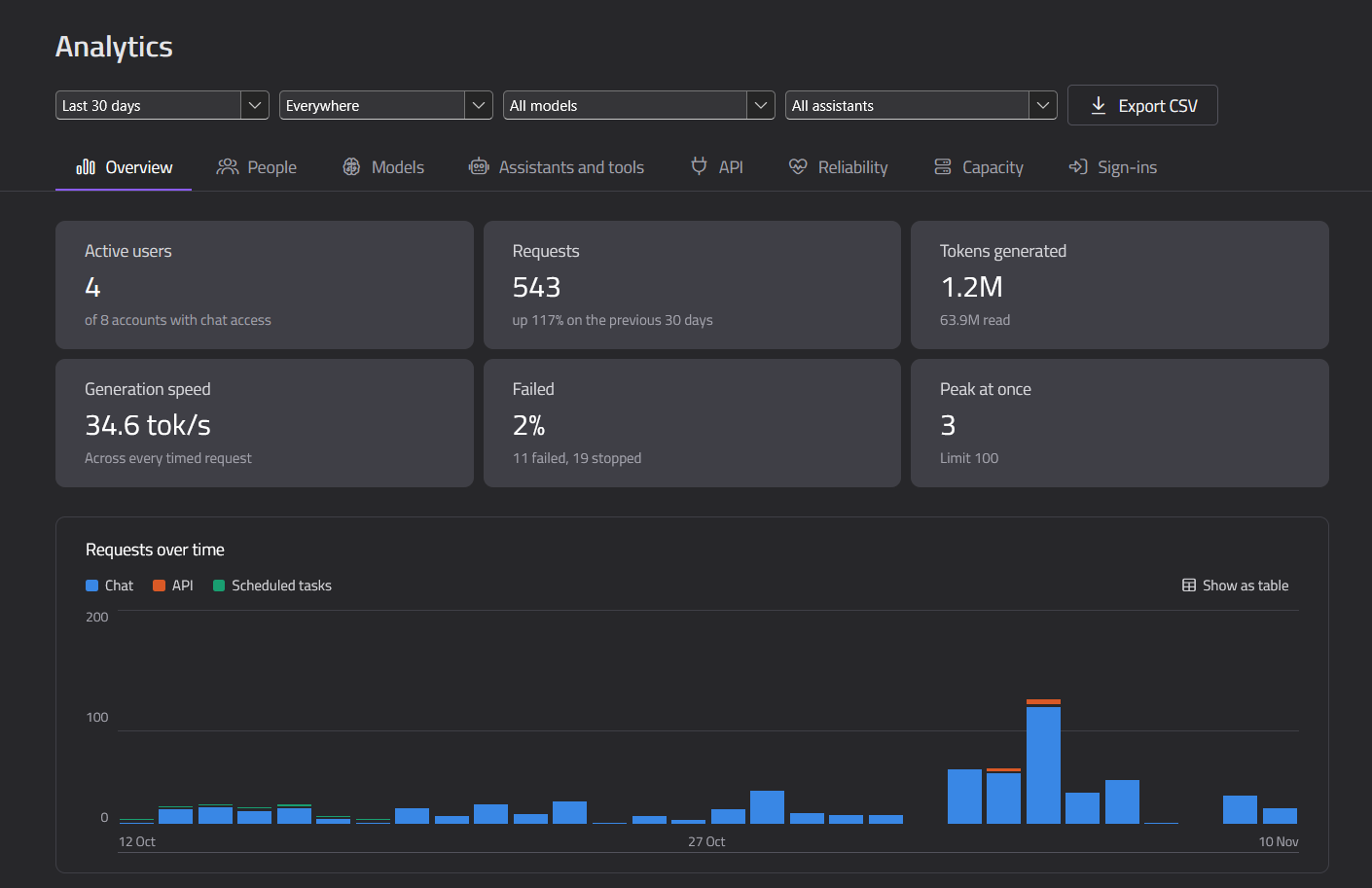
See connected Nodes, inspect hardware and model executors, and explore usage and performance through the Gateway.
MAKE IT FIT YOUR BUSINESS
Install from the marketplace, import a connector package or create your own predefined tools in Python for an internal service.
How connectors work ↗Connect tools provided by an MCP server alongside OnVeris connectors, with the authentication and access options that server supports.
Explore connector options ↗Use the OpenAI-compatible API to bring private model inference and configured assistants into supported applications and workflows.
Explore the API →START WITH CONTROL
Start with a focused assistant, a suitable model and a defined set of users. Add knowledge, connectors and more capacity as your needs grow.
Deploy the Gateway and Nodes within infrastructure you control.
Set its instructions, model, knowledge sources and available tools.
Share the assistant with selected users or applications, then expand from there.