
HubSpot
Look up contacts, companies, deals and support tickets. Give a sales assistant the customer context it needs.

ONVERIS / CONNECTORS
Connectors give OnVeris specific tools for working with the systems your organisation chooses - finding information or carrying out tasks - while your team decides which tools exist and who can use them.
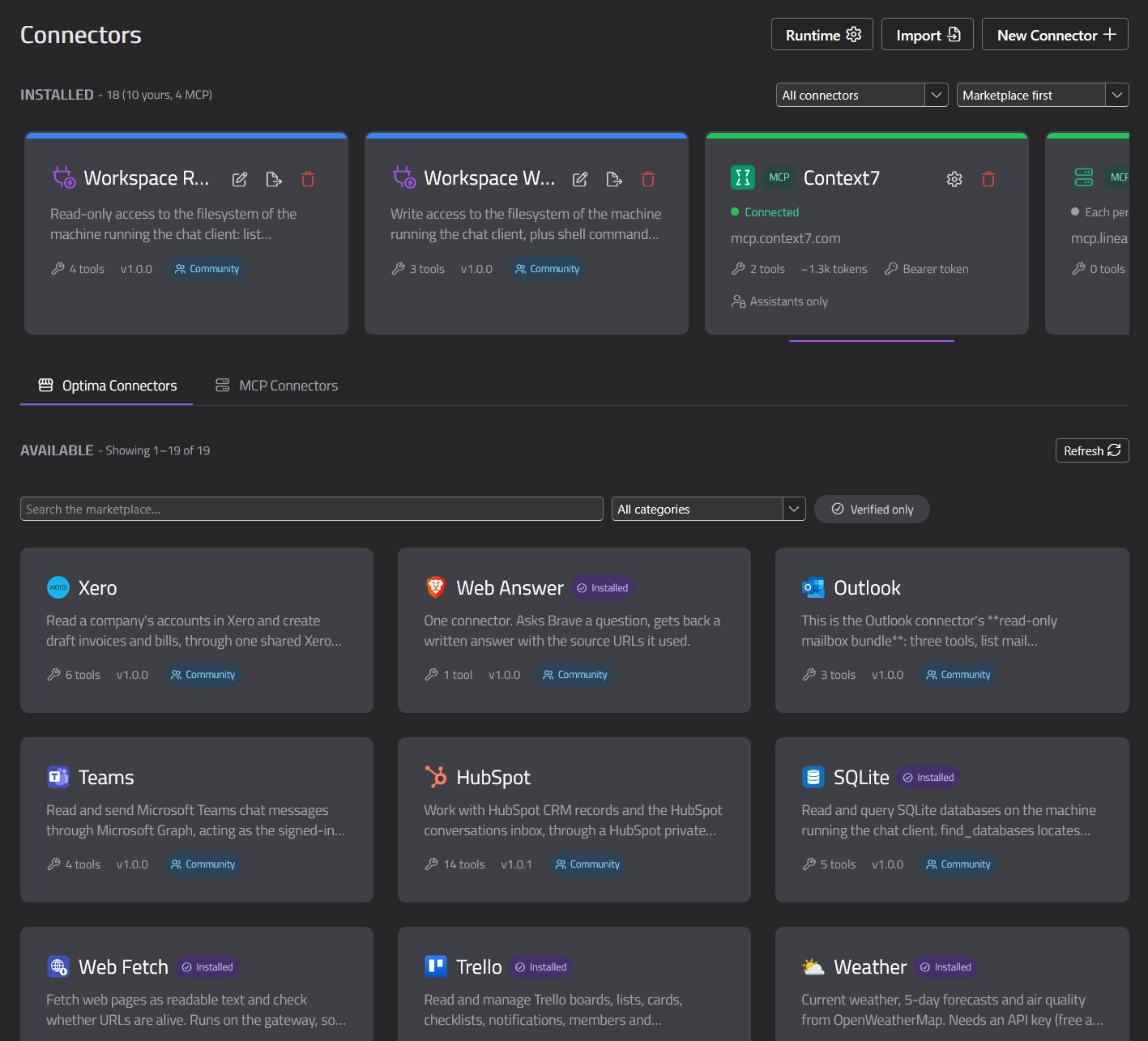
A connector gives an assistant a specific way to work with another system: look up a customer, find a document, pull an order. The assistant can only use the tools it's been given - nothing more.
CONNECTED TO YOUR BUSINESS
Bring live business data into the conversation with a growing catalogue of connectors. Give each assistant the specific tools it needs, from customer records and accounts to HR and everyday collaboration.
Look up contacts, companies, deals and support tickets. Give a sales assistant the customer context it needs.
Read invoices, bills and financial reports. Create draft invoices for a person to review in Xero.

Find employee information and leave records. Use the available tools to book or review leave requests.



Search SharePoint and OneDrive files, read Outlook email and work with Teams chats through dedicated connectors.


Look up customer and payment information in Stripe, or work with boards, cards and checklists in Trello.

Add predefined tools for internal services, connect an MCP server, or build an OnVeris connector for your own workflow.
Connector capabilities vary by service. Administrators configure credentials and access. Connections to cloud services use those services; local AI inference remains in your chosen infrastructure.
MCP CONNECTIONS
MCP connectors sit alongside native OnVeris connectors. The directory and installed connections are managed from the Gateway.
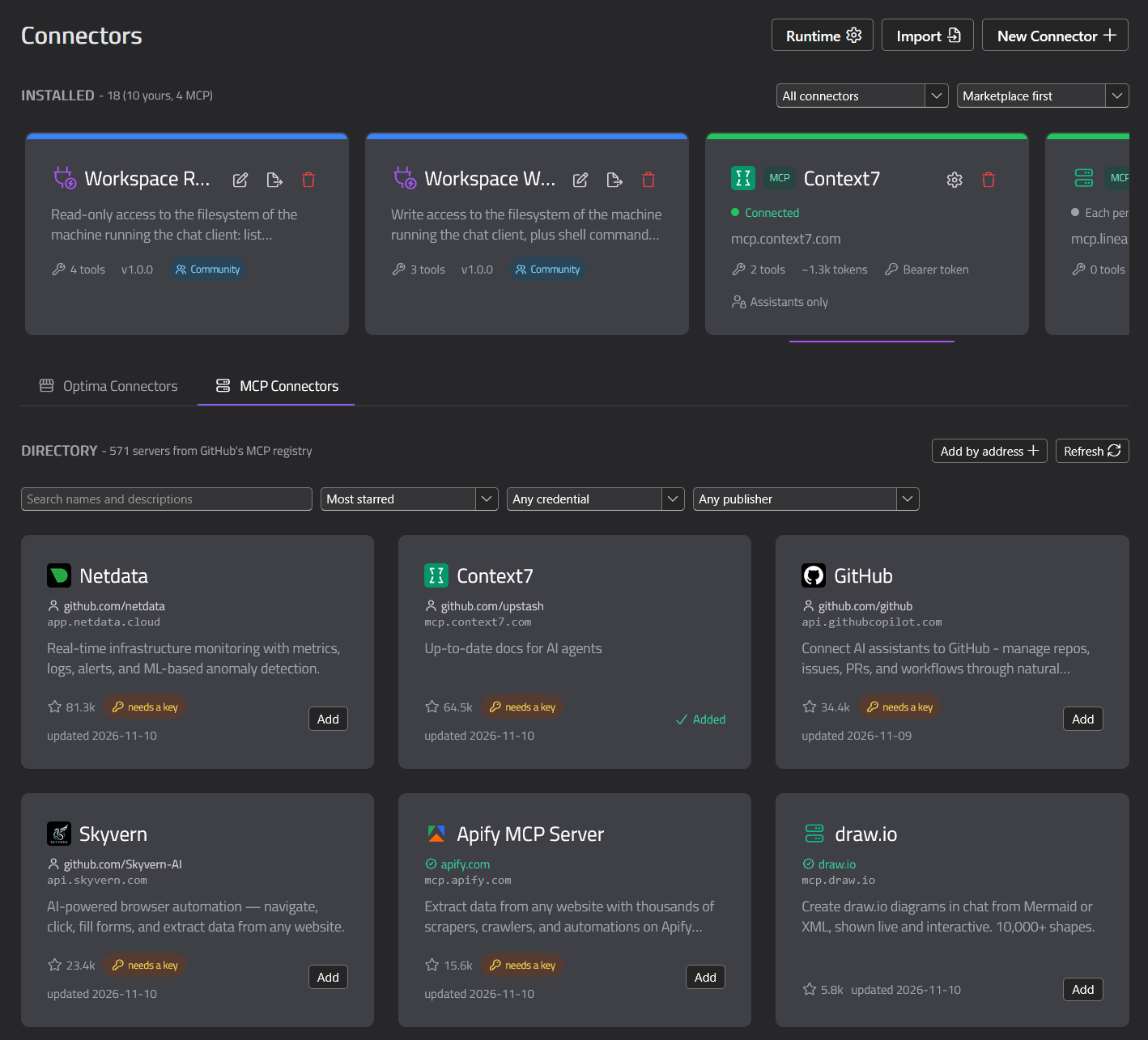
Assign connectors and individual tools to the assistants that need them. In Chat, selected tools can be set to ask the user before they run - you decide what an assistant can do and when a person needs to sign off.
Configure each connector using the authentication method its service supports. Where a connector offers individual sign-in, people connect their own account. Where it uses shared credentials, admins can restrict access through assistant and connector settings.
OnVeris can run inside infrastructure you control. One caveat: some MCP connectors are operated by external providers, so information sent in a tool request may be processed by that provider. Choose trusted servers and enable only the tools you need.
Chat is for everyday conversations, Search makes approved documents available to AI, Assistants define task-specific AI, and Connectors give those assistants approved ways to work with other systems.
See how OnVeris connectors could support your workflows and access requirements.